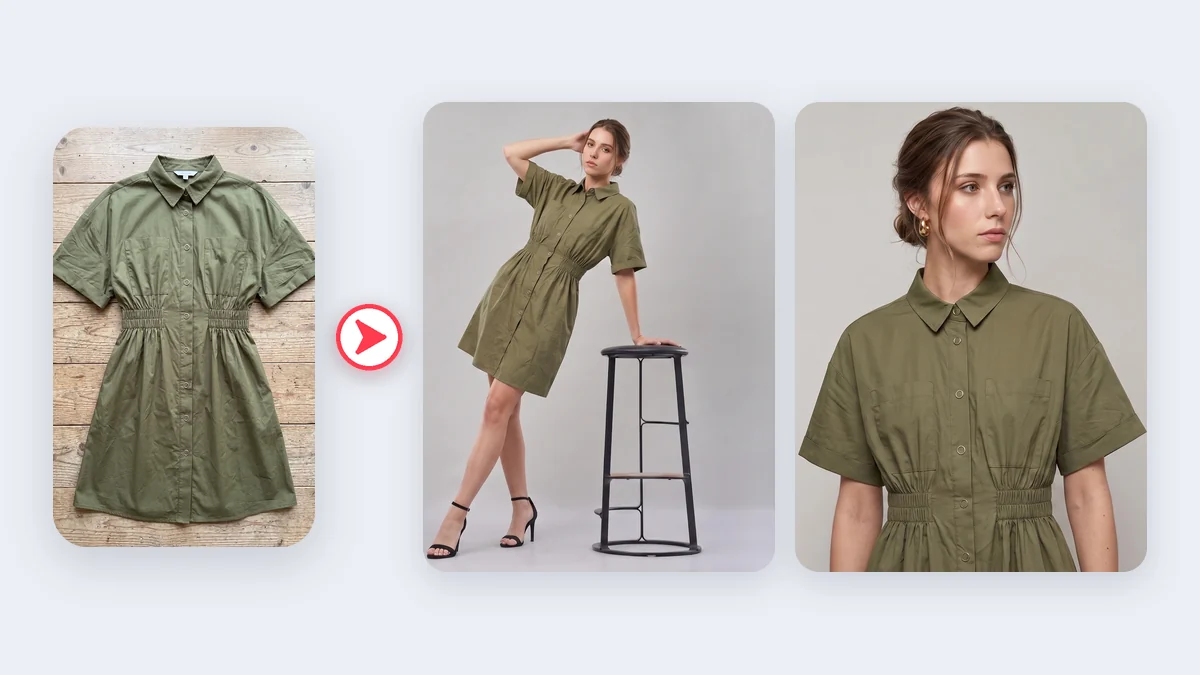
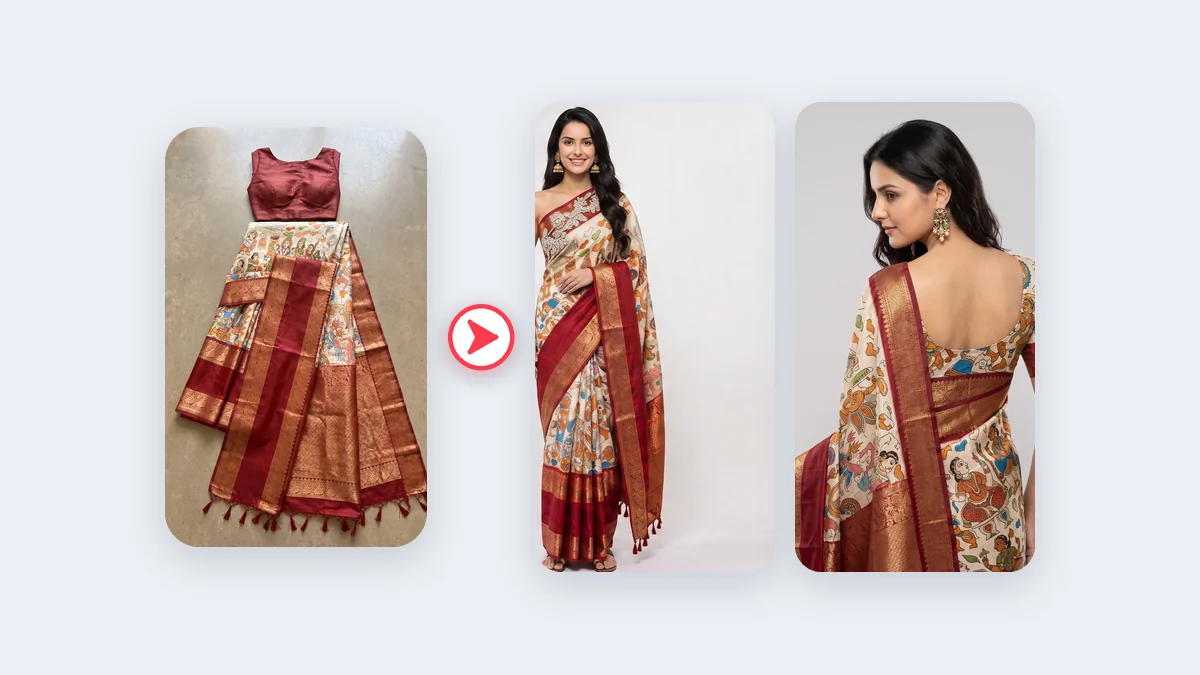
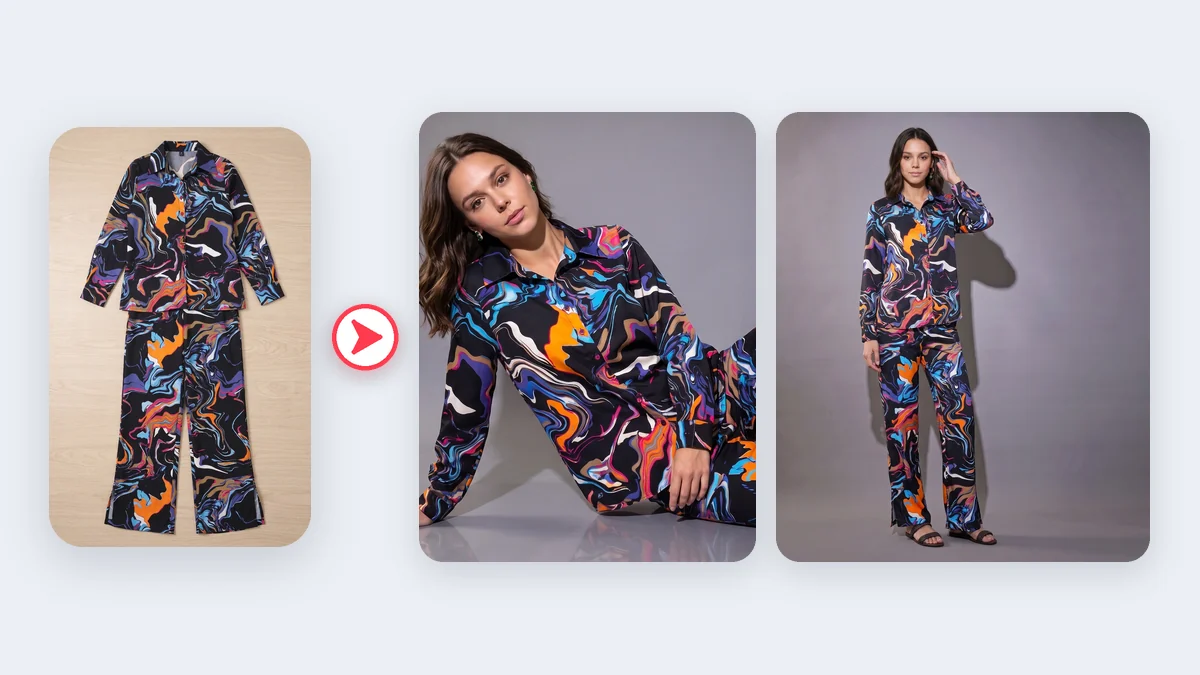
Listing image rejections are the most avoidable delay in ecommerce. They happen days after upload, they block the listing, and they are almost always about specifications nobody read rather than image quality. If you sell fashion across Amazon, Myntra, Flipkart, Meesho and your own store, the product photos for marketplace listings have to satisfy several rule sets at once, and each of them changes from time to time.
This guide explains the shape of those rules, how to plan one image set per product, how to put the images in the right order, and how to produce each channel's version in Vastralook without re-shooting anything.
What do marketplaces actually require in a listing image?
Requirements change, so check the current spec in each marketplace's seller panel before a big upload rather than trusting a blog post, including this one. What is stable is the shape of the requirements:
- Primary image background. Most large marketplaces ask for a clean background on the main image, often pure white. Lifestyle and on-model shots go in the secondary slots. Some fashion channels accept a light studio background instead, so read the rule for your category.
- Fill ratio. The product must occupy a minimum share of the frame, commonly around 85%. Too much empty space is a rejection.
- Minimum dimensions. These are driven by the zoom feature. Under-sized images are either rejected or lose zoom.
- Aspect ratio. Square is the safe default for a store; some fashion channels prefer or require a portrait ratio.
- No text, logos, watermarks or borders on the primary image. This one catches out a lot of brands who add a size chart or a price banner over the photo.
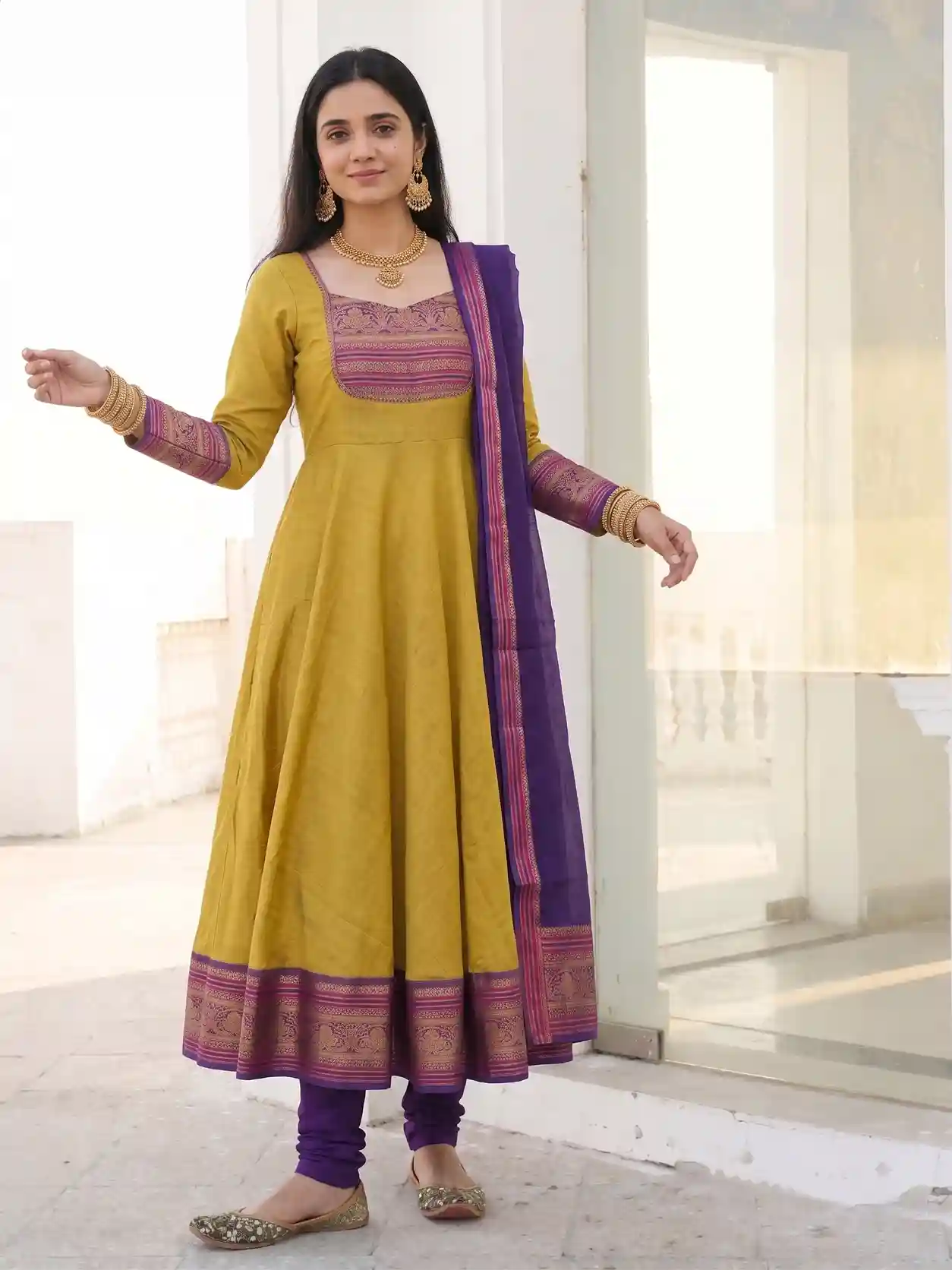 Product page
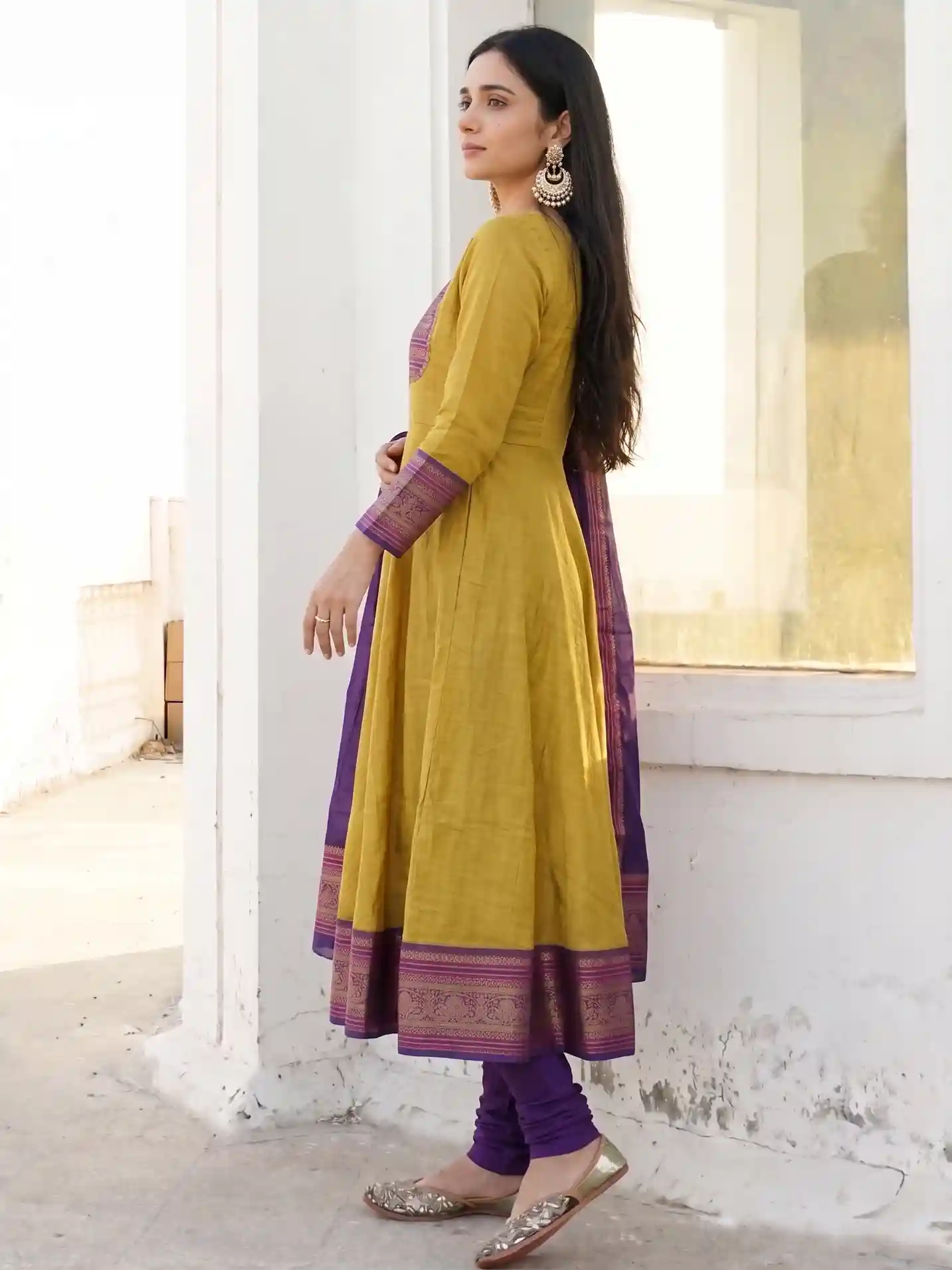 Editorial
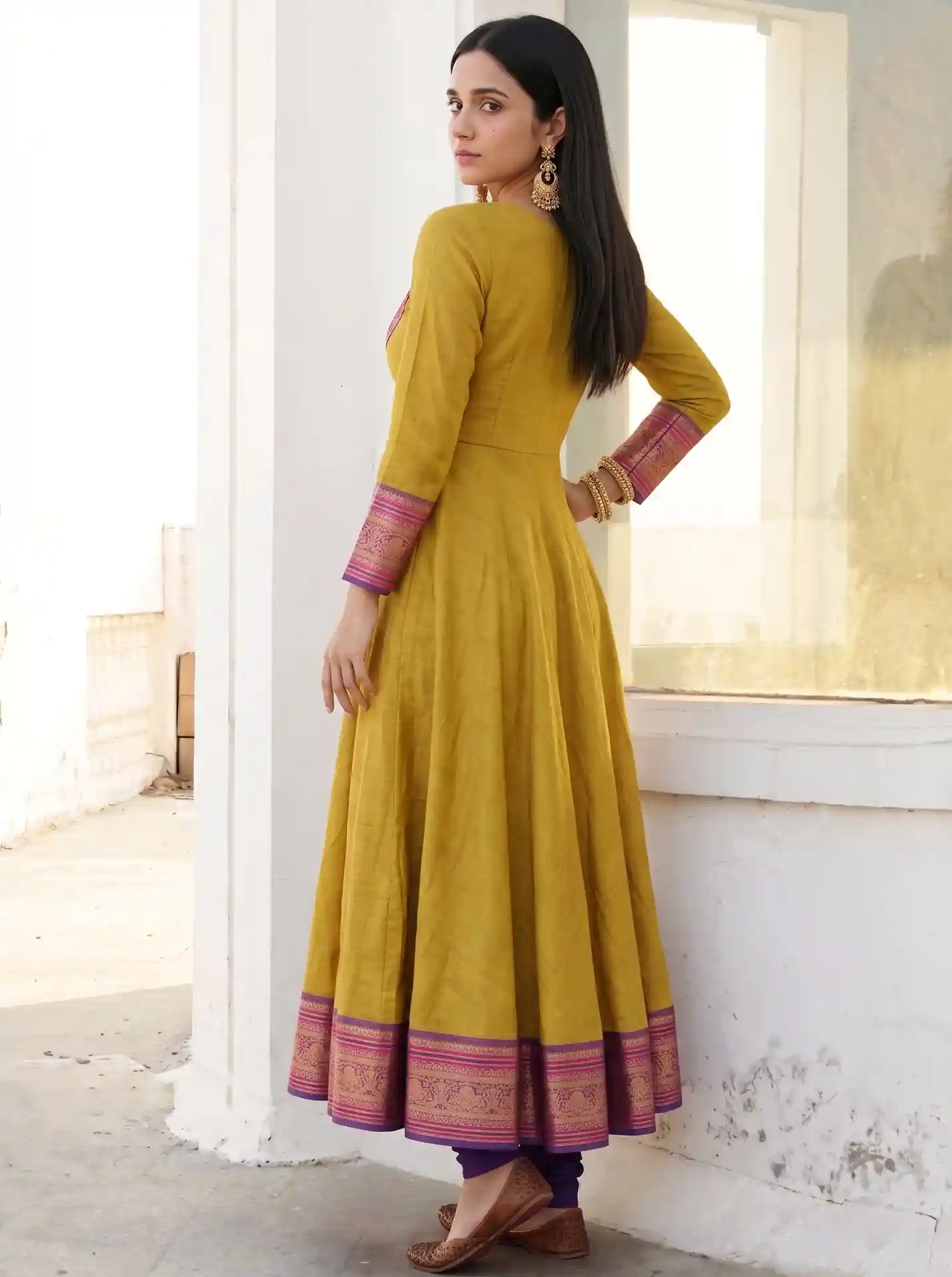 Festive
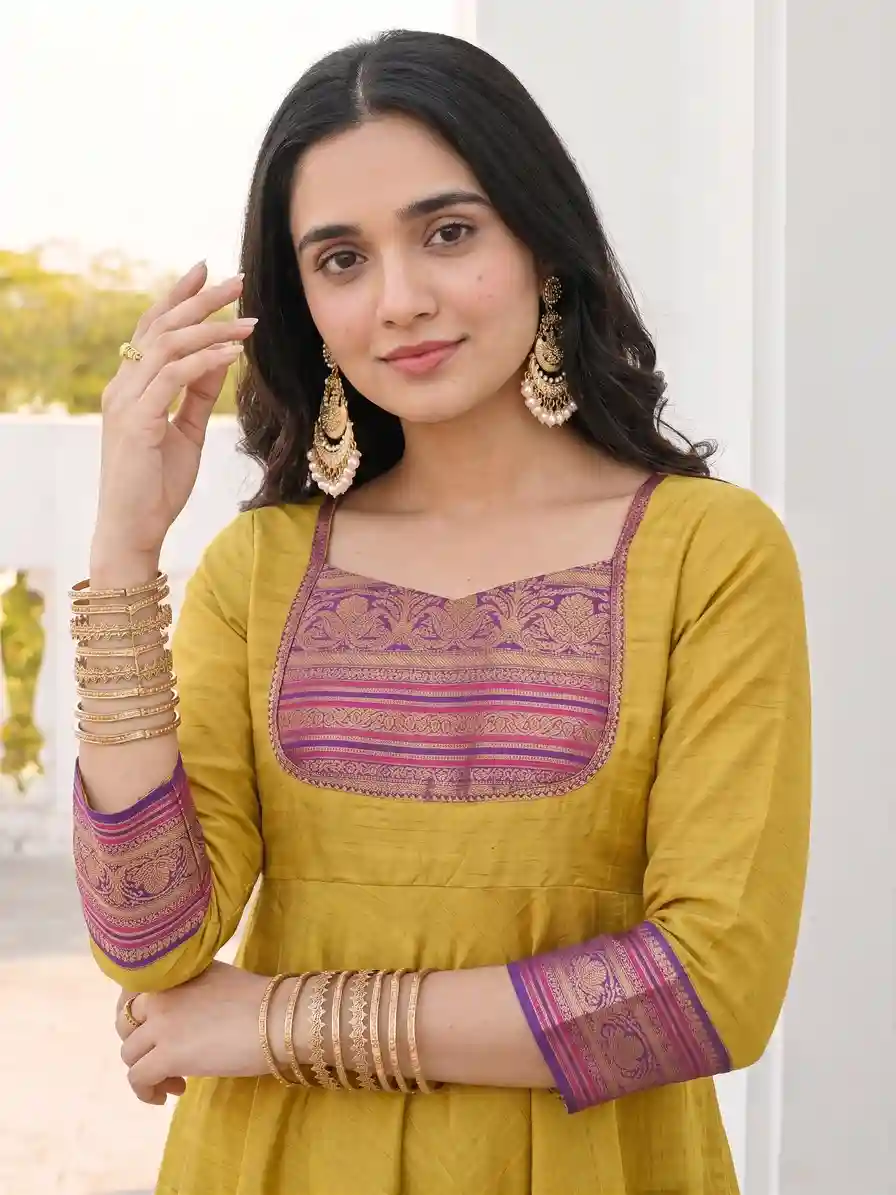 Close crop
The primary passes review; the frames after it do the selling. Producing them as one set, rather than cropping a single master down per channel, is what keeps every slot composed rather than salvaged.
Why produce one set and generate each channel's version?
The efficient approach is to decide the image set per product once, then generate each channel's version rather than cropping a single master down and hoping. A crop of a portrait photo into a square cuts off the hem or the pallu. A crop of a tight image into a loose one leaves the product too small. Generating each version separately means the product is framed for that slot from the start.
- Primary: clean background
Meets the strictest channel's rules. Its only job is to pass review.
- On-model, full length
Fit, drape and proportion. This is where the buying decision happens.
- On-model, three-quarter
Styling context: how it is worn and what it goes with.
- Detail crop
Fabric, embroidery, hardware, stitching.
- Back or alternate angle
Answers the question the front cannot.
- Scale or styling shot
Where the channel permits lifestyle imagery.
How do you make marketplace-ready photos in Vastralook?
For sarees and lehengas, Drape Studio has a Marketplace card. Tap Myntra, Amazon, Flipkart or Meesho and the studio sets the poses, background, model and image size for that marketplace in one go. A preset is a starting point, not a lock: you can still change anything afterwards, and your change wins.
| Preset | Poses | Background | Size | Credits at Instant | Credits at Budget |
|---|---|---|---|---|---|
| Myntra | 5: Front Standing, Left Profile, Back View, Seated, Candid Stroll | Light Grey Studio | 2K | 75 | 50 |
| Amazon | 5: same five poses | Pure White Studio | 2K | 75 | 50 |
| Flipkart | 3: Front Standing, Left Profile, Back View | Light Grey Studio | 2K | 45 | 30 |
| Meesho | 3: Front Standing, Left Profile, Back View | Light Grey Studio | 1K | 30 | 21 |
The presets show the point of planning one set per product. Amazon's preset uses a pure white studio and Myntra's a light grey one, with the same five poses. Poses and background differ per channel, and you generate the version each one needs from the same saree, rather than editing a single file five ways.
For every other garment, use Catalogue Studio. Upload photos of the garment, up to four sides each, pick the models and the styles or poses you want, and check the Summary tab. The shot count is garments times models times styles, so you see the total before you order. Choose a clean, front-facing pose for the primary slot and add three-quarter, back and detail-style poses for the slots behind it.
Why does the order of images matter?
Shoppers swipe. The second and third images are where the buying decision actually happens, which is why a catalogue with a compliant primary and nothing behind it underperforms even when every rule is satisfied. If you only have budget to improve one thing, improve image two.
A good second image answers the question the first cannot. For a saree that is the drape and the pallu on a model. For a kurta set it is the fit and length. For a dress it is how it moves. Think of each slot as one question the buyer would otherwise ask you in a message, and make the image answer it.
What mistakes get listings rejected or ignored?
- Adding a size chart, price or logo over the primary image. Put those in later slots or in the listing text where the channel allows it.
- Using the same background for every channel without checking each rule.
- Cropping a portrait image to a square after the fact, so the hem or pallu is cut off.
- Uploading images that are too small for the channel's zoom, so the buyer cannot see the weave.
- Not checking the finished shots. Output varies: pose, drape and fine detail can differ from the reference. Look at every image at full size before it goes live.
- Starting a bulk upload before one product has been approved end to end.
- Primary image on the background the channel asks for
- Product fills the required share of the frame (commonly around 85%)
- Meets the channel's minimum pixel dimensions for zoom
- Correct aspect ratio for that channel
- No text, logos, watermarks or borders on the primary
- Secondary slots carry the on-model, detail and back shots
- Every shot checked against the real garment, colour and detail
- One product run end to end and approved before bulk upload
How should you roll this out before a bulk upload?
Run one product through the full pipeline and get it approved before generating four hundred. Ten minutes of validation against a live listing beats discovering a fill-ratio problem after the whole catalogue is queued.
Pick your most typical product, produce the set, upload it as a draft listing, and see whether the marketplace accepts it. If it does, repeat the same settings for the rest. If it does not, fix the one thing it flagged and try again. Because you have only spent the credits for one product, the lesson is cheap.
Credits matter here. Instant costs 10, 15 or 20 credits per shot at 1K, 2K and 4K, and Budget costs 7, 10 or 15. If a shot fails, its credits come back automatically. For what a credit pack costs, see the pricing page.
Why do marketplaces reject product images?
Mostly for specification problems rather than image quality: a background that is not what the channel asks for, a product that fills too little of the frame, a size that is too small for zoom, or text and watermarks on the main image. Check the current rules in each seller panel.
Does every marketplace need a pure white background?
No. Many large marketplaces ask for a clean background on the main image, often pure white, but rules differ by channel and category. Vastralook's Amazon preset uses a pure white studio, while the Myntra and Flipkart presets use a light grey one. Always confirm in the seller panel.
Should I make one image and crop it for each marketplace?
It is better to decide one set per product and generate each channel's version. Cropping a single master often cuts off the garment or leaves it too small.
How many images does a listing need?
Enough to answer the buyer's questions: a clean primary, an on-model full-length shot, a styling shot, a detail crop and a back or alternate angle. Marketplace slot limits differ, so check yours.
Can Vastralook set up photos for a specific marketplace?
For sarees and lehengas, Drape Studio has presets for Myntra, Amazon, Flipkart and Meesho that set poses, background, model and size. For other garments, you choose models and poses yourself in Catalogue Studio.
Will the generated photos match my product exactly?
Output varies, so pose, drape and fine detail can differ from your reference photo. Check each shot, especially colour and fine detail, before you upload it.
Related reading
Start every shoot with a free AI garment analysis
In Drape Studio, the moment you upload a saree photo Vastralook reads it for you: category, occasion, fabric, colours, design and work. It costs no credits. A saree added through Catalogue Studio opens the same drape window, so it gets the same reading.
- Upload the saree photo; the AI garment analysis fills in beside it.
- Open Model & Background: five AI recommended packages appear, each a model, a background and jewellery with a match score.
- Click one package to use all three, or choose each yourself from StyleMuse.
- Check the combinations, then order. Studio-quality shots that start from choices made for your garment.
Photos are also checked in your browser before they are taken: a garment photo should show the garment, an own model photo one person, an own background nobody. If a photo is not right, the reason is shown right under the upload box.