A package is a curated group of styles that work together. In Vastralook's Catalogue Studio, the Packages tab shows ready-made sets: each one is a group of scenes with a setting, a pose, a framing and a mood that someone has already chosen to go together. You pick one, add your garments and models, and the studio shoots every garment on every model in every scene of the package. This article explains what a package contains, how it differs from picking styles one by one, and how to choose the right one for a product page, a category grid, social media or a marketplace.
What is in a package?
A style sets the pose, the framing and the setting. A package is a set of those styles that are meant to be used together, so the shots look like a set. The package is not a filter or a preset applied on top of a picture. Each scene in it is a composed shot, and you can flip through the scenes with the arrows and open one in a larger picture with View before you decide.
What a package does not do is choose your garment or your model. You pick the garments in the left panel and the models in the Models tab, and the package decides how they are shown. That is why one package can be reused for a whole range: the setting stays the same and the garment changes.
 Product page
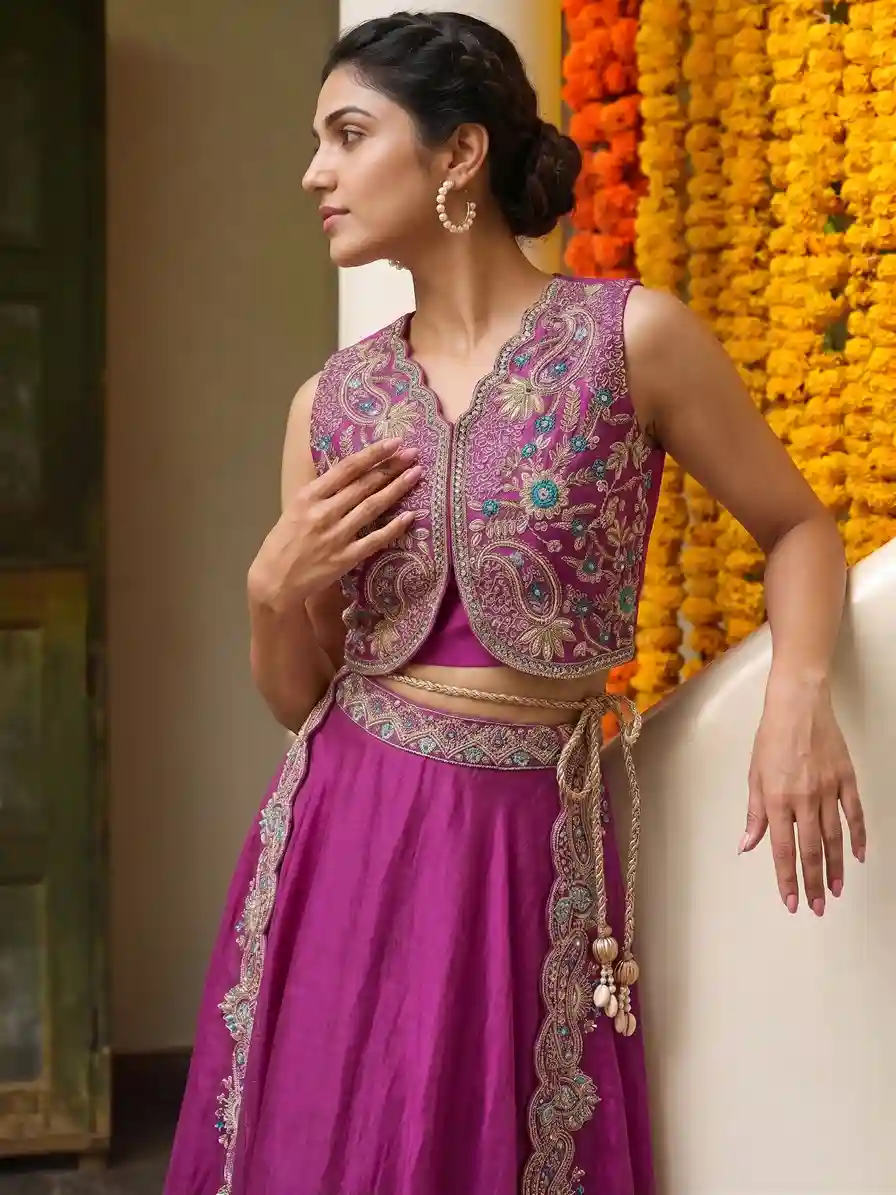 Editorial
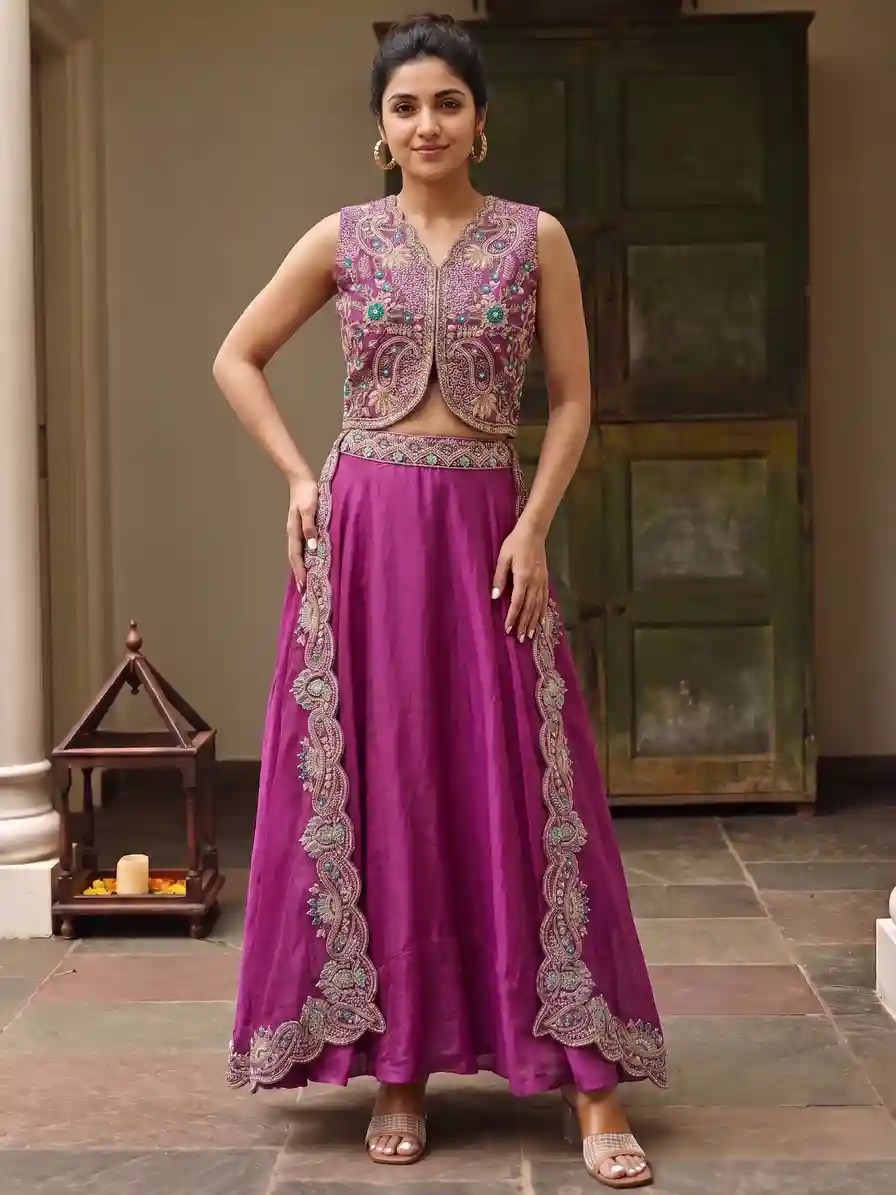 Festive
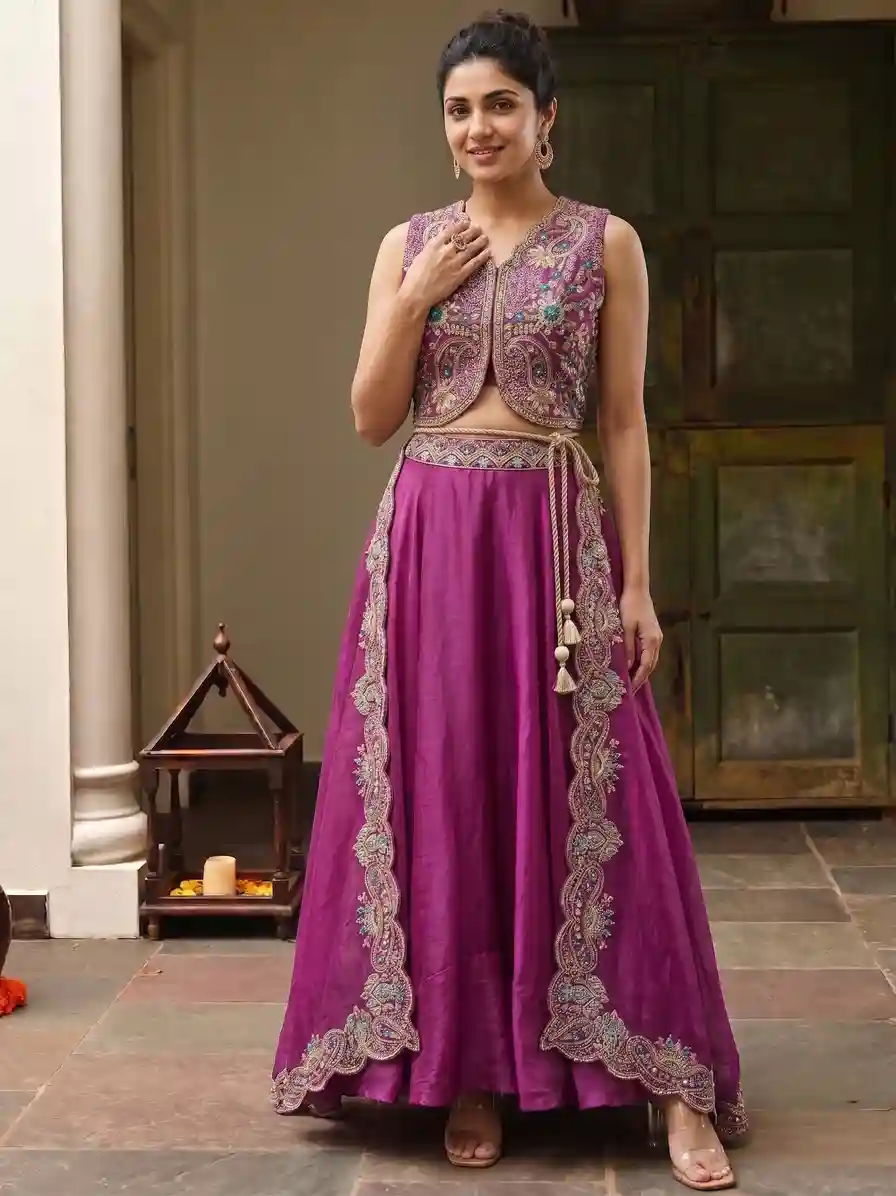 Close crop
A package is not a filter or a preset — it is a composed shoot. Setting, lighting, framing and mood are already tuned to work together, so you are choosing from finished results rather than imagining one.
Why choose from packages rather than describe a shot?
Because choosing from finished results is an easier task than imagining one. Describing a photoshoot well is a real skill: it takes a setting, light, framing, pose and mood, all in enough detail to give a consistent result, and most first attempts are too vague. Browsing a set of images and picking the one that looks right skips all that.
There is a second reason, less obvious: a package is repeatable. The package that produced this month's images will produce next month's. That is what keeps a catalogue coherent across a season, and it is very hard to achieve by re-describing a shot from memory each time.
How do you add a package in Catalogue Studio?
- 1. Add your garments and models first
Upload your garment photos (up to 4 sides each) and pick the models in the Models tab. The package is applied to them, so it helps to have them in place.
- 2. Open the Packages tab and find a package
Search by what is in the package, such as a background or an object. Filter by garment category, or by how many styles it holds (from 1 to 8, or 9 and more). Bookmark a package you use often so you can find it again.
- 3. Flip through the scenes
Use the arrows to see each scene in the package, and View to open one in a larger picture. Judge it on the garment you are shooting: would the setting suit it?
- 4. Add the package, or only some of it
Add all styles puts every style in the package into your batch in one tap, and pressing it again takes them out. To use only some scenes, tap those scenes one by one instead.
- 5. Check the Summary and order
The Summary tab lists every garment, model and style combination, each one a shot. Remove any you do not want, then order as Instant or Budget.
What does a package cost in shots and credits?
A package has no price of its own: you pay for the shots. Every style in it is one shot for each garment and model. A package with four styles, used on three garments and two models, makes 24 shots. Budget costs 7 credits a shot at 1K (10 at 2K, 15 at 4K) and takes 4 to 5 minutes; Instant costs 10, 15 and 20 and is ready in 1 to 2 minutes. At Budget 1K, 24 shots cost 168 credits. The studio shows the total before you press an order button.
| Package styles | Garments | Models | Shots | Credits at Budget 1K |
|---|---|---|---|---|
| 4 | 1 | 1 | 4 | 28 |
| 4 | 3 | 2 | 24 | 168 |
| 6 | 10 | 1 | 60 | 420 |
| 9 | 10 | 2 | 180 | 1,260 |
How do you pick a package by where the image is going?
Pick by destination, not by prettiness. The package that makes one product look spectacular is often the wrong choice for a category of forty, because grids are judged as a whole.
| Destination | Choose | Because |
|---|---|---|
| Product page | Clean and quiet | The garment is the subject, and detail stays visible |
| Category grid | Whatever you used last time | Coherence beats individual quality here |
| Social | More atmosphere | A lifestyle setting earns its keep |
| Campaign and banners | The most stylised | It needs composition space for copy |
| Marketplace main image | The plainest available | The channel's rules are strict. Check the marketplace's own seller panel for the current rule |
How do you match a package to the garment?
A busy print tends to need a quiet setting, or the print and the background fight. A dark garment tends to need directional light, or its construction disappears. Sheer fabric looks better with backlight, and structured tailoring benefits from side light that shows the seams. If a result looks flat and you cannot say why, the lighting in the package is usually the first thing to check. Look at the scenes in the Packages tab with your garment in mind, and open a few in View before you commit.
How do you build a house style from packages?
Over time, pick a small set of two or three packages and use them consistently. That is what a brand look actually is: not a distinctive one-off image, but the same deliberate choices repeated until customers recognise them. Bookmark your chosen packages so that anyone on your team opens the same ones. Combine this with the same model across the range and a catalogue starts to look like it belongs to one brand.
- One package for product pages, with a calm setting.
- One for social, with more atmosphere.
- One for campaigns and banners, with space for copy.
- The same models across all three.
What about sarees and lehengas?
Packages belong to Catalogue Studio. Sarees and lehengas go through Drape Studio, which has three tabs (Saree Drape, Styles and Orders) and no Packages tab. There you pick a model and a background from StyleMuse, both required before ordering, and choose poses in the Styles tab. The same idea applies, though: pick a small set of backgrounds and poses and use them across your sarees.
As with any generated image, the output varies. Pose, drape and fine detail can differ from your reference, so check every shot, whichever package you use.
Start every shoot with a free AI garment analysis
In Drape Studio, the moment you upload a saree photo Vastralook reads it for you: category, occasion, fabric, colours, design and work. It costs no credits. A saree added through Catalogue Studio opens the same drape window, so it gets the same reading.
- Upload the saree photo; the AI garment analysis fills in beside it.
- Open Model & Background: five AI recommended packages appear, each a model, a background and jewellery with a match score.
- Click one package to use all three, or choose each yourself from StyleMuse.
- Check the combinations, then order. Studio-quality shots that start from choices made for your garment.
Photos are also checked in your browser before they are taken: a garment photo should show the garment, an own model photo one person, an own background nobody. If a photo is not right, the reason is shown right under the upload box.
What is the difference between a style and a package?
A style is one pose, framing and setting. A package is a curated group of styles that work together. Adding a package adds all its styles in one tap, and you can still tap single scenes to use only some.
Does a package include the model?
No. You choose the models in the Models tab. A package decides how the garment and the model are shown, so one package can be used with any model you pick.
Can I use only part of a package?
Yes. Tap the scenes you want one by one instead of using Add all styles.
Do packages cost extra?
A package has no price of its own. You pay credits for each shot, and each style in the package is one shot per garment and model. The total is shown before you order.
Can I use packages for sarees?
Packages are in Catalogue Studio. For sarees and lehengas use Drape Studio, where you pick a model, a background from StyleMuse and poses in the Styles tab.