Loading
Skip to main content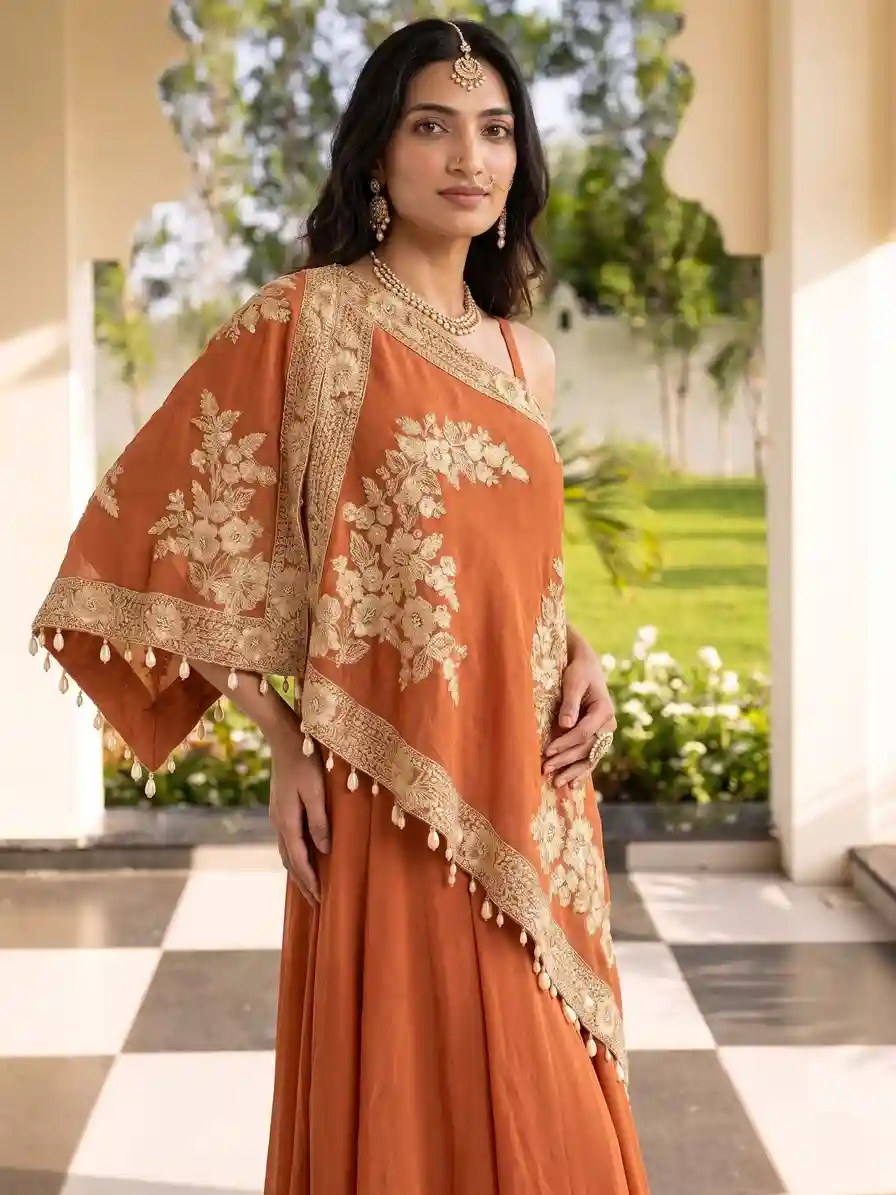
 Demo logo: yours is uploaded in Catalogue Studio
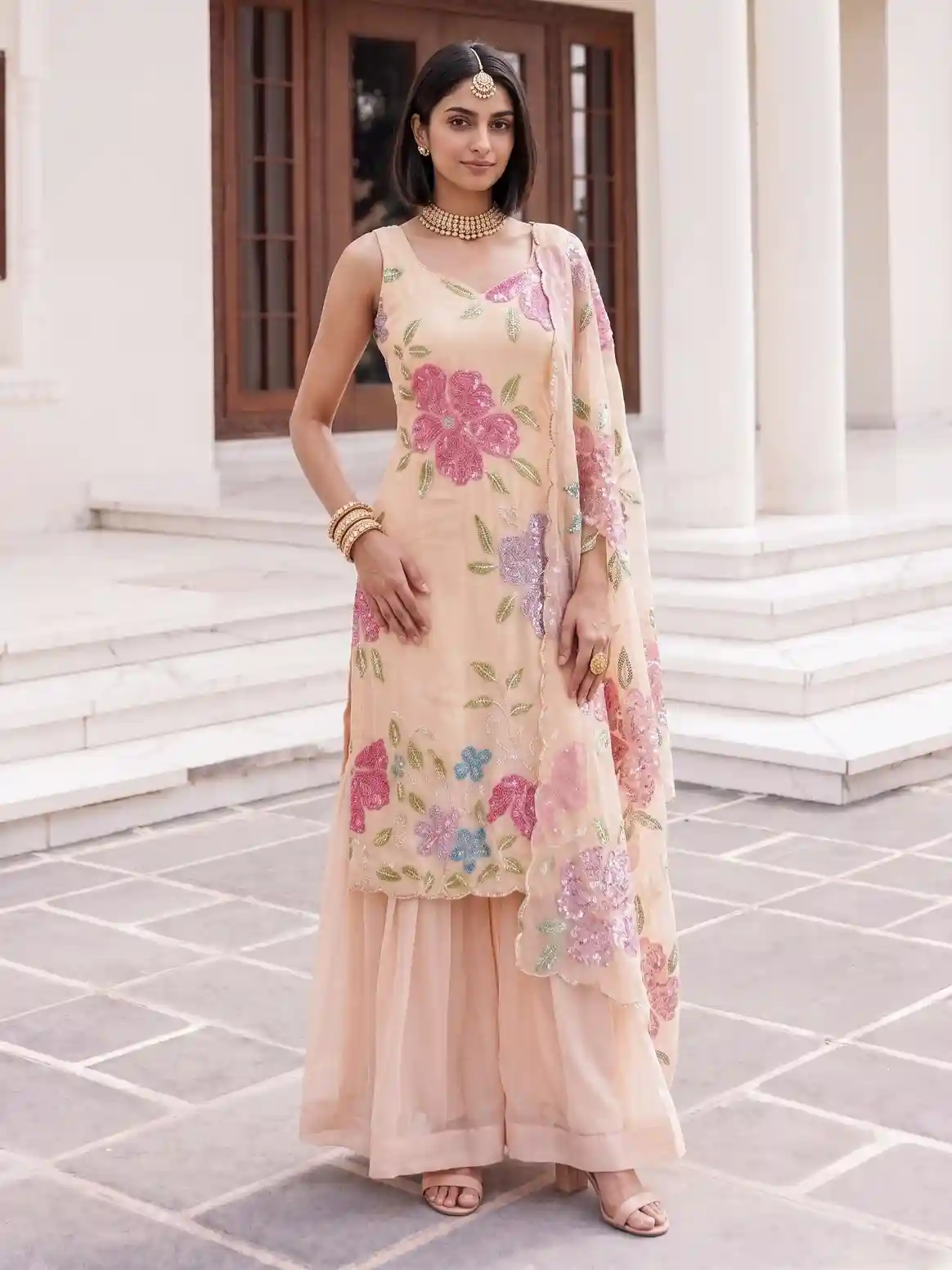
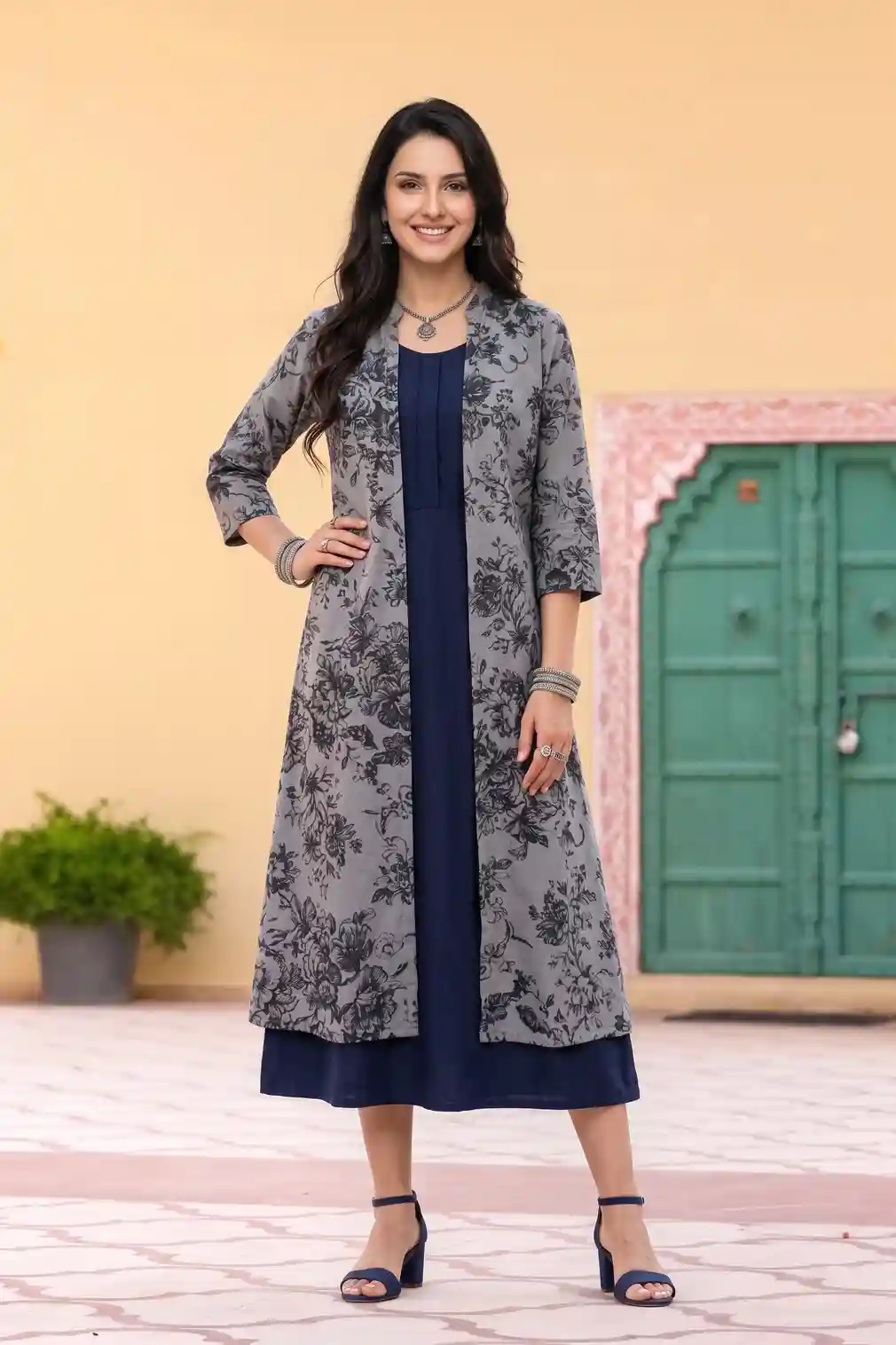
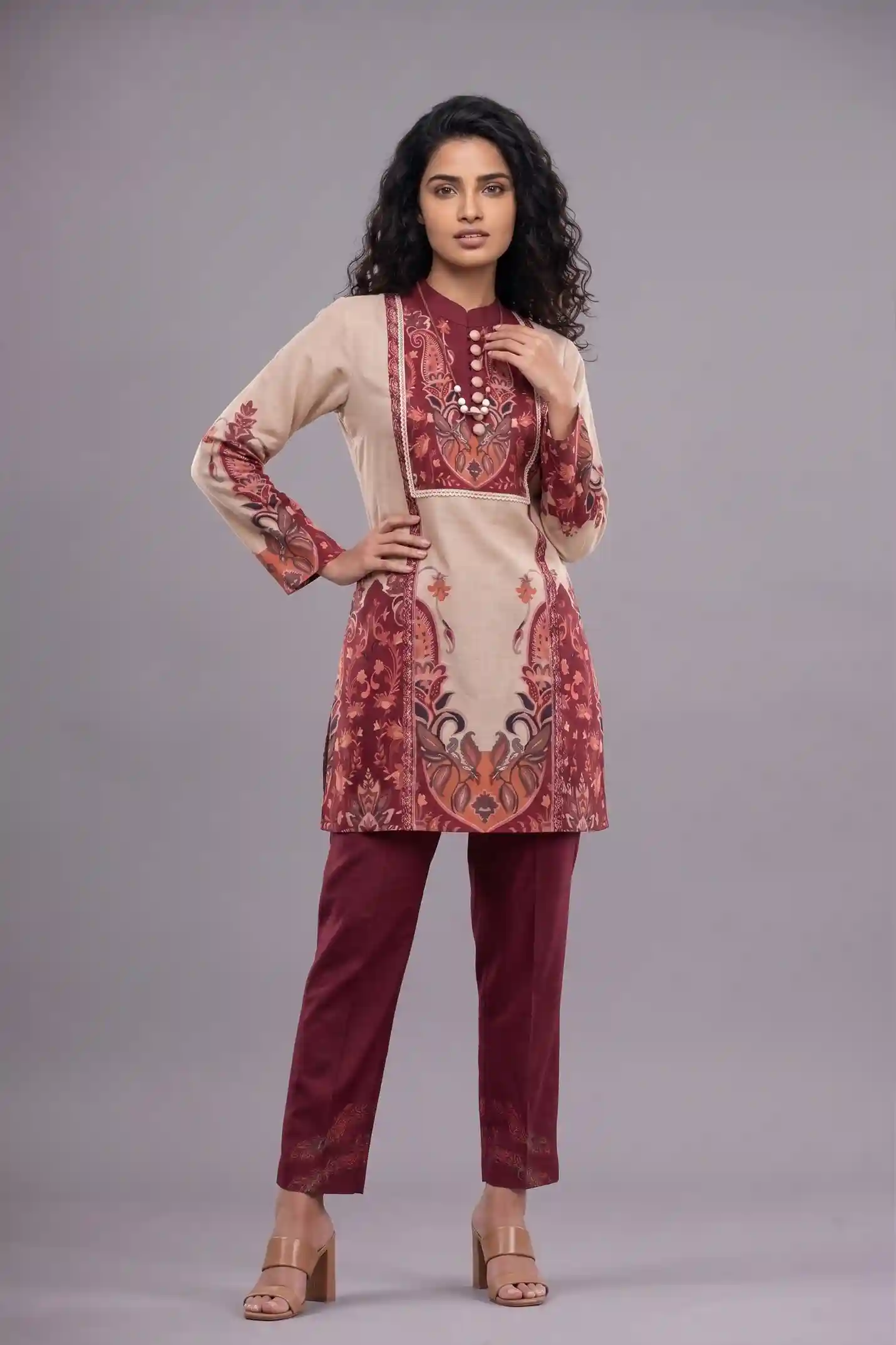

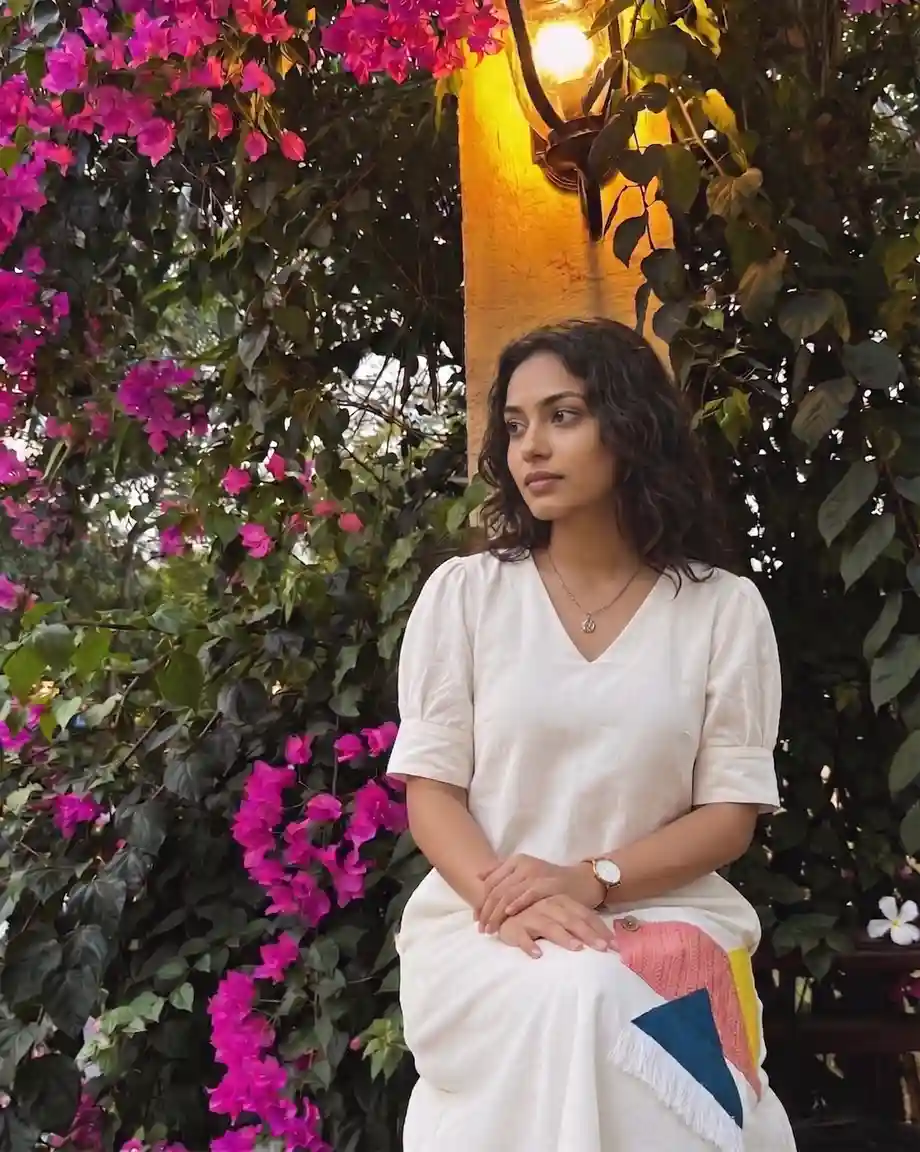
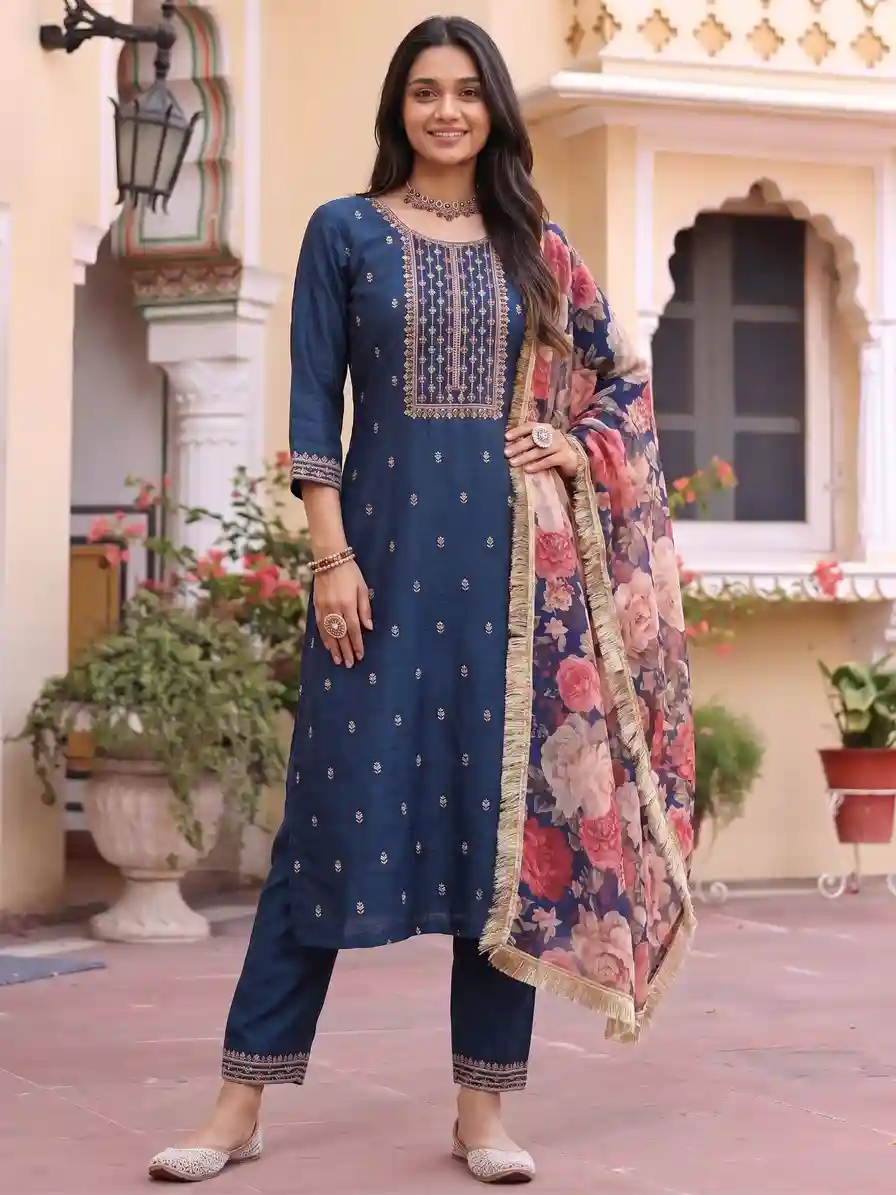
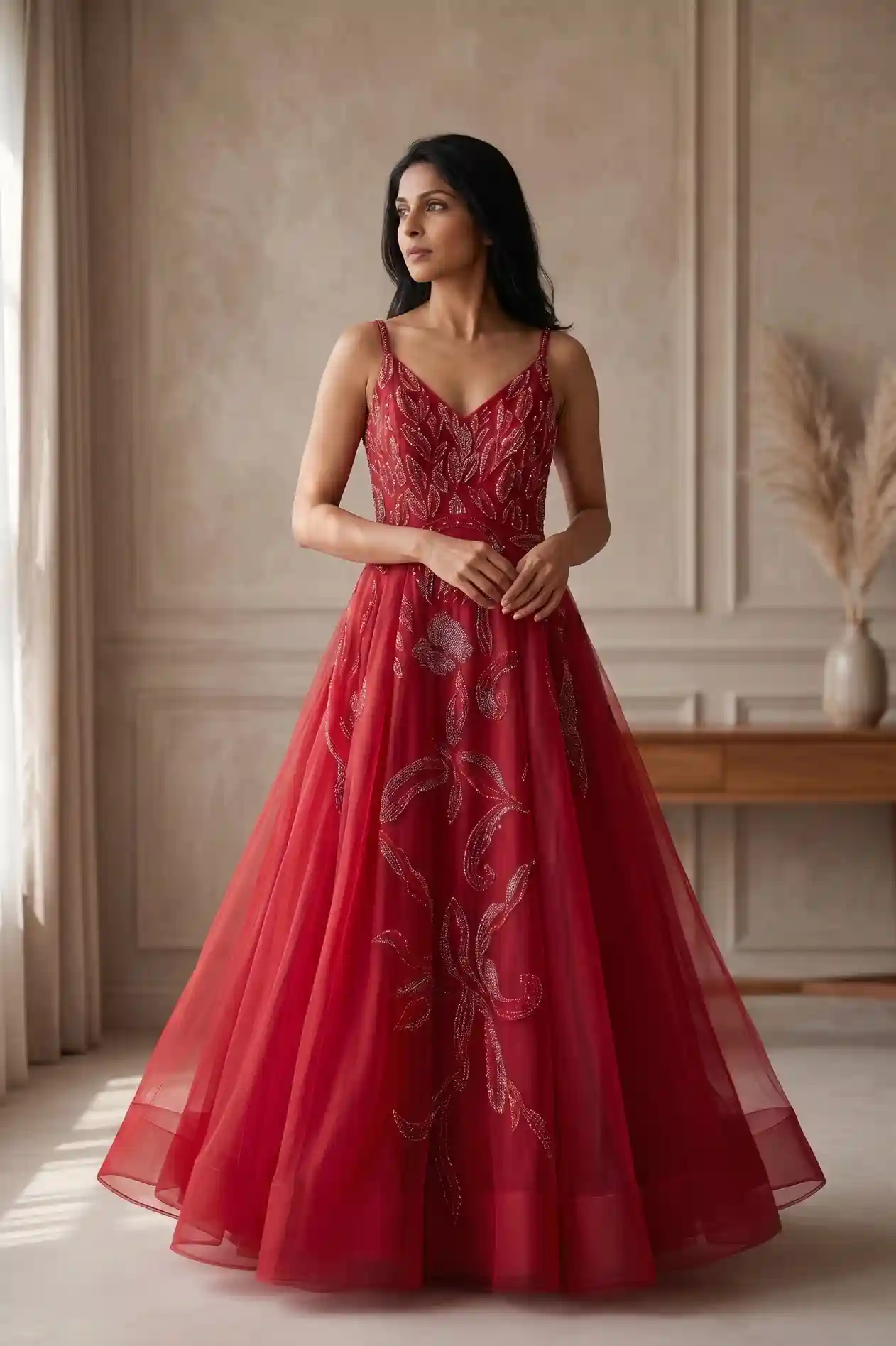
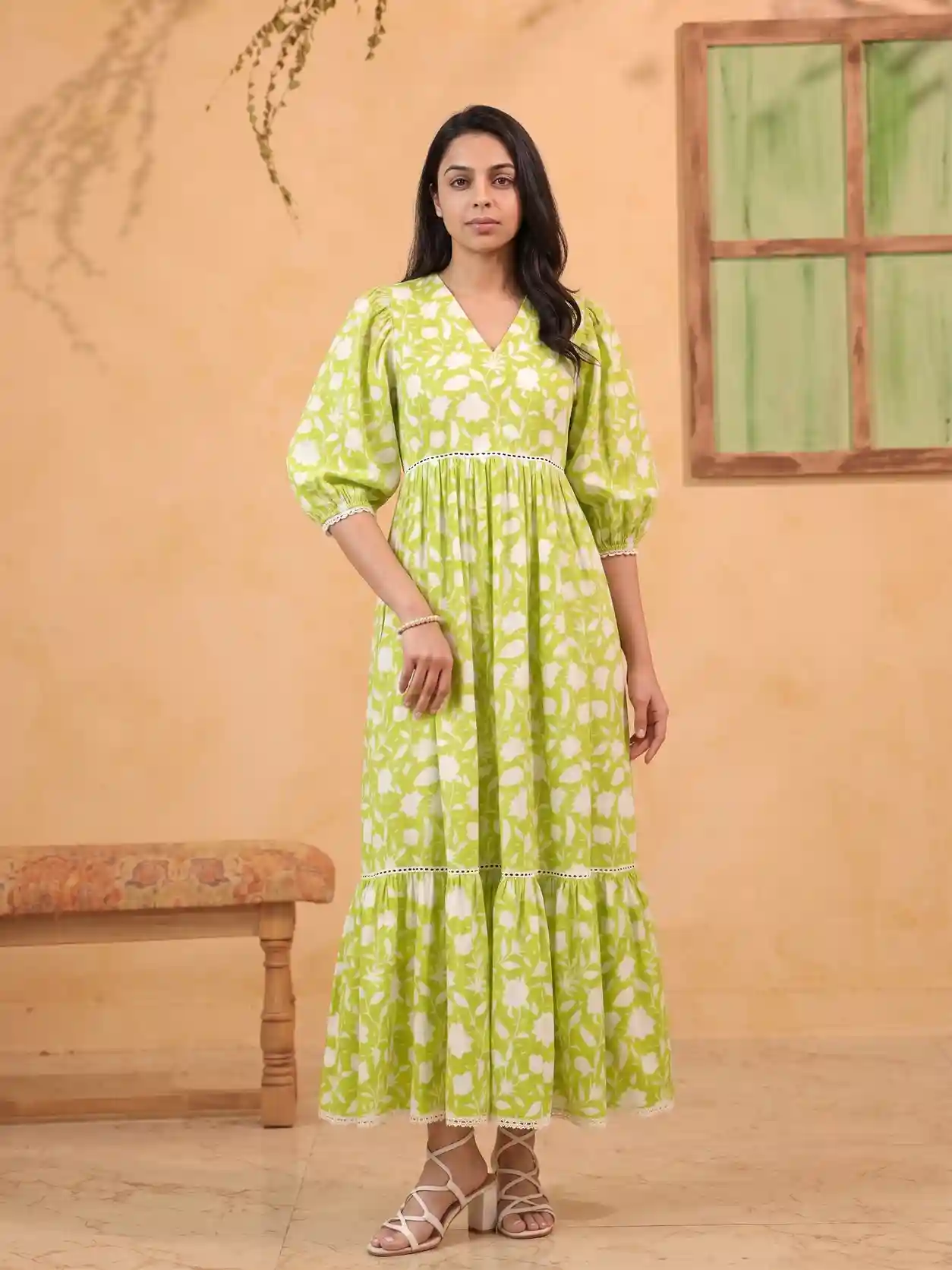
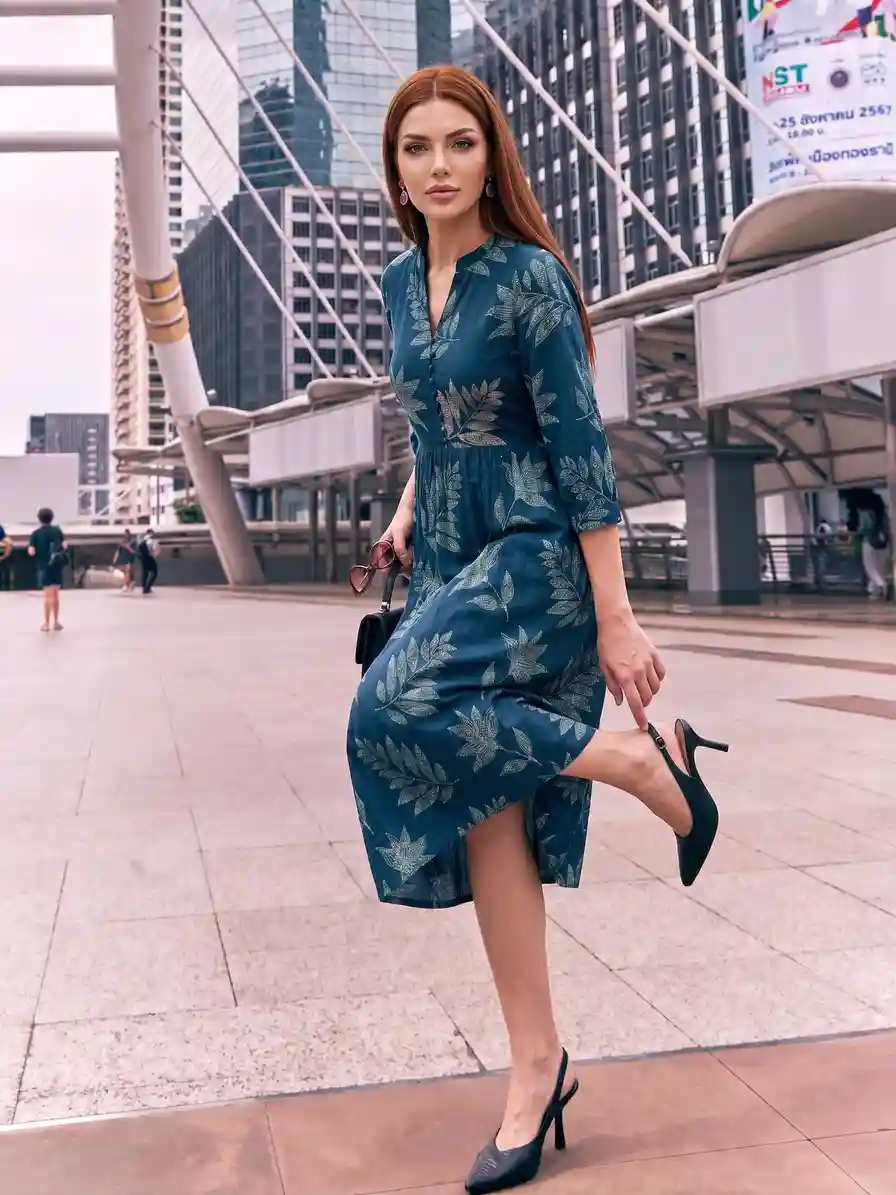
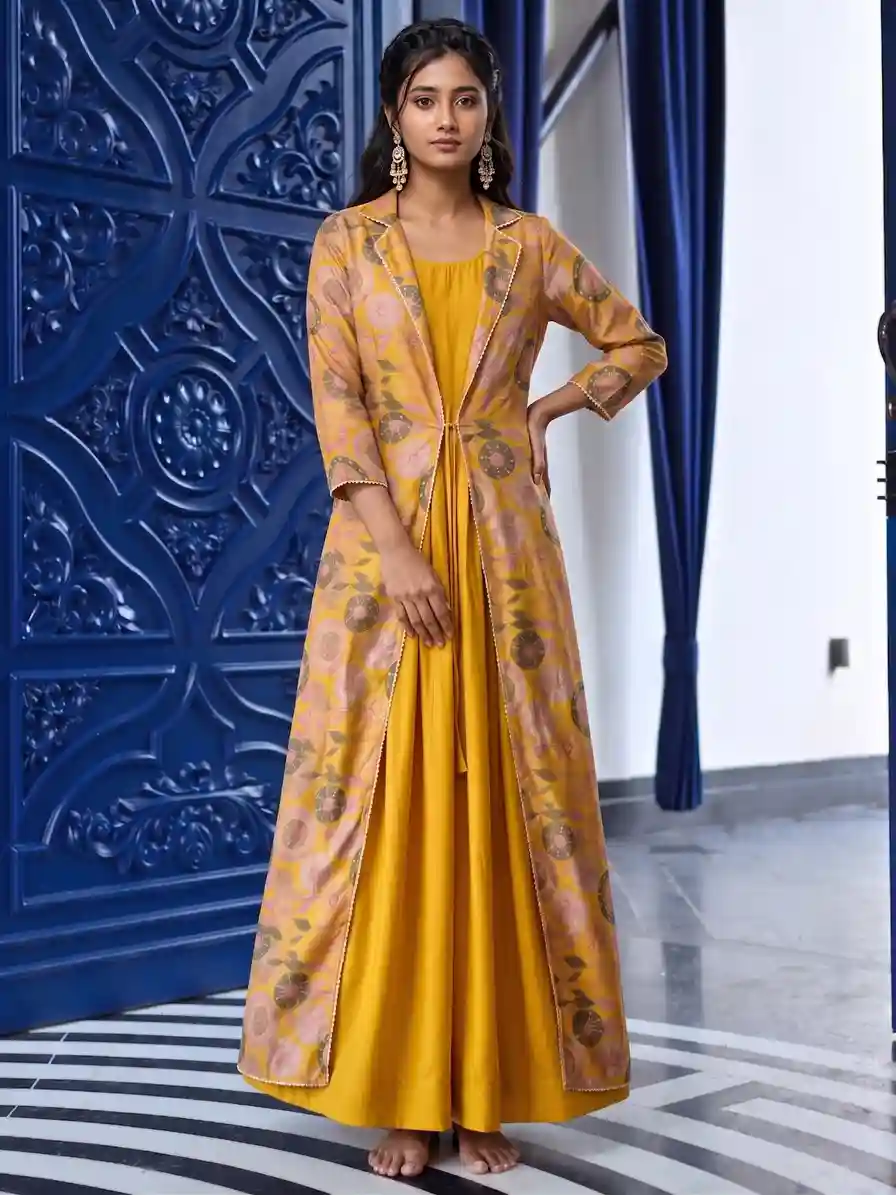

Your logo on every shot
Your logo on every shot, set once
Add your logo once in Catalogue Studio and set its corner, size and opacity. Vastralook puts it on every shot in the order, so your catalogue carries your brand without editing pictures one by one.
Free AI garment analysis · no credits used
Demo logo: yours is uploaded in Catalogue StudioTry it: set your logo once
PositionBottom right
Clear of the face. The same setting is on every shot below.
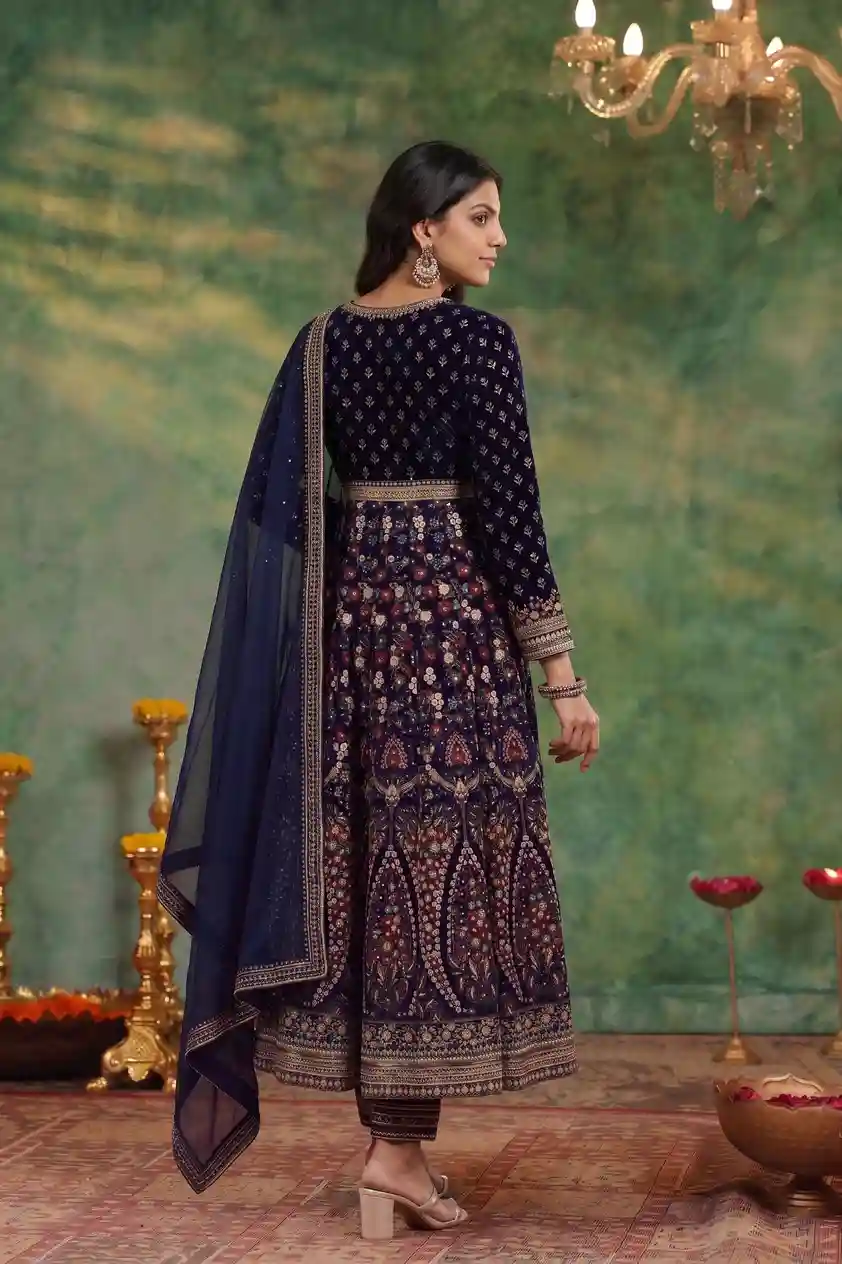
The same setting on every shot (tap one to see it large)
- 4.7Trusted by 400+ brands
- 1,245photoshoot packages
- 76AI models
More about this tool
How the logo setting works
You make one setting. It is saved on your account, and every shot you export uses it.
Position
Pick one of four corners. The logo always sits in the same corner on every shot, so the catalogue looks like one brand.
Opacity
Lower it for a quiet watermark, raise it to 100% for a clear brand mark. Light and solid logos both stay readable.
Logo size
A share of the picture's width, so it stays in proportion on a small shot and on a large one.
Margin
The gap between the logo and the edge, so it does not touch the border or get cut when a marketplace crops the picture.
From one upload to every shot
- 1
Upload your logo once
A PNG with a transparent background works best. The first time you press Export with logo, the logo window opens.
- 2
Set it, and it is saved
Position, opacity, size and margin are saved on your account. Next time, Export with logo downloads straight away.
- 3
Export with logo, on any shot
Every shot in the Studio results and in your orders has the action. The picture downloads with your logo in place.
Working for clients? Save each client's logo and settings, and choose the client when you export.
What you get
- Set it once; it goes on every shot.
- Choose the corner.
- Choose the size.
- Choose the opacity.
- Check every shot at full size.
How it works
How it works, in 3 steps
- 1
Upload your logo
The Brand Logo card: upload a PNG with a transparent background. You can also save a logo for each client.
- 2
Set the position, opacity, size and margin
Pick the corner and move the sliders. The preview shows the shot, so keep the logo clear of the model's face.
- 3
Press Export with logo
Open a shot's menu in the Studio results or your orders and press Export with logo. The picture downloads with your logo.
More about this toolOn the face: avoid Bottom corner: clear
Built for a whole catalogue
01
One setting for the whole order
Set the position, opacity, size and margin once. They are saved on your account, so there is no editing picture by picture.
Open Catalogue Studio02
The same on every shot
The same corner, size and opacity on every picture, so your catalogue looks like one brand.
See the guide03
Keep the logo off the face
Pick a bottom corner so the logo stays clear of the model's face and the garment. The preview shows it before you export.
See an exampleQuestions about Your logo on every shot
Can I add my logo to all photos at once?
Yes. Set it once for the order.
Can I change where it sits?
Yes: the corner, the size and the opacity.
Which logo file works best?
A PNG with a transparent background.
Will it cover the garment?
Check the preview and move it to a clear corner.
Your brand, on every shot.
Set your logo once and see the shots before you order.
Start freeFree AI garment analysis · no credits used